Device Management (FC-Control)
FC-Control is the central graphical utility in the Broadway2 Python software suite. It provides real-time hardware discovery, device identification via LED blinking, MAC address configuration, and friendly name assignment across all FibreCode USB devices.
Before you begin
Launch FC-Control
Navigate to the Python3/app directory in the extracted Broadway package:
Python3/app/
├── fc_control.py       # Main GUI control application
├── fc_view.py          # Real-time monitor
├── net/
├── raw/
├── root/
└── tool/
Launch the application:
Run from the command line or double-click fc_control.py in Windows File Explorer:
python fc_control.py
sudo python3 fc_control.py
The application window appears and automatically displays connected hardware:
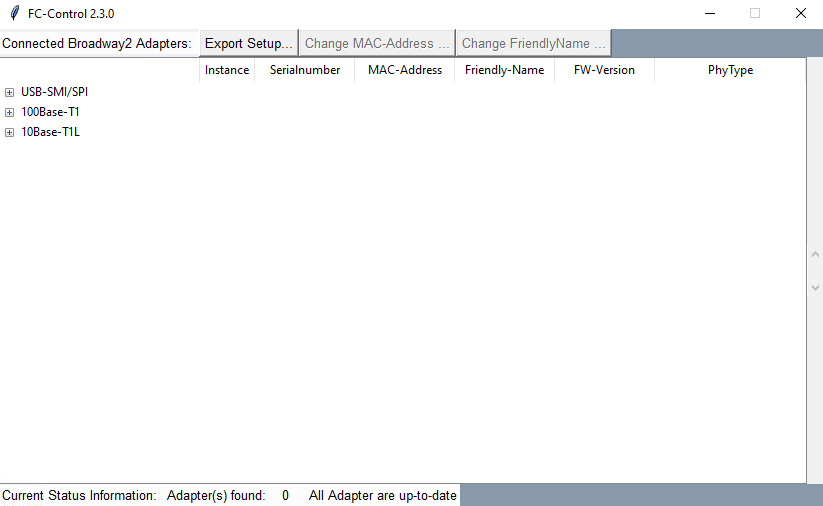
FC-Control supports USB Plug-and-Play. When you connect or disconnect an adapter, the device tree automatically rebuilds in real time.
Inspect Device & Identify Hardware (LED Blink)
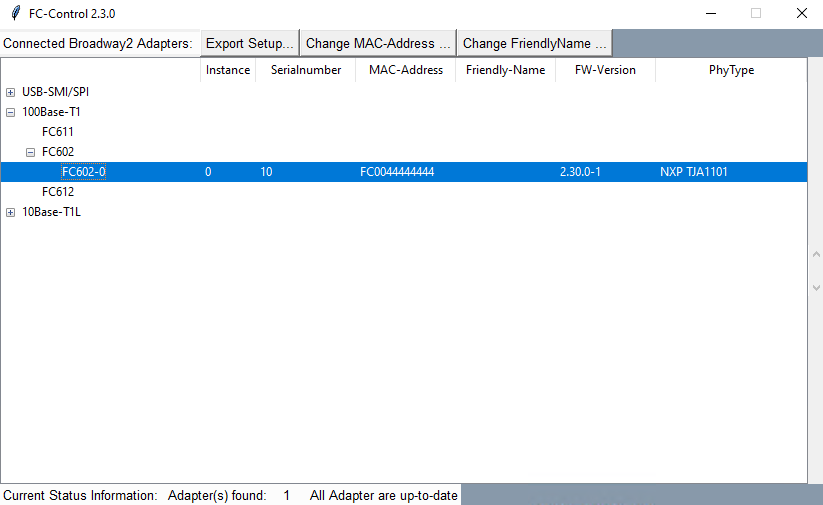
When an adapter is connected, its serial number, firmware version, and MAC address are shown in the hierarchy:
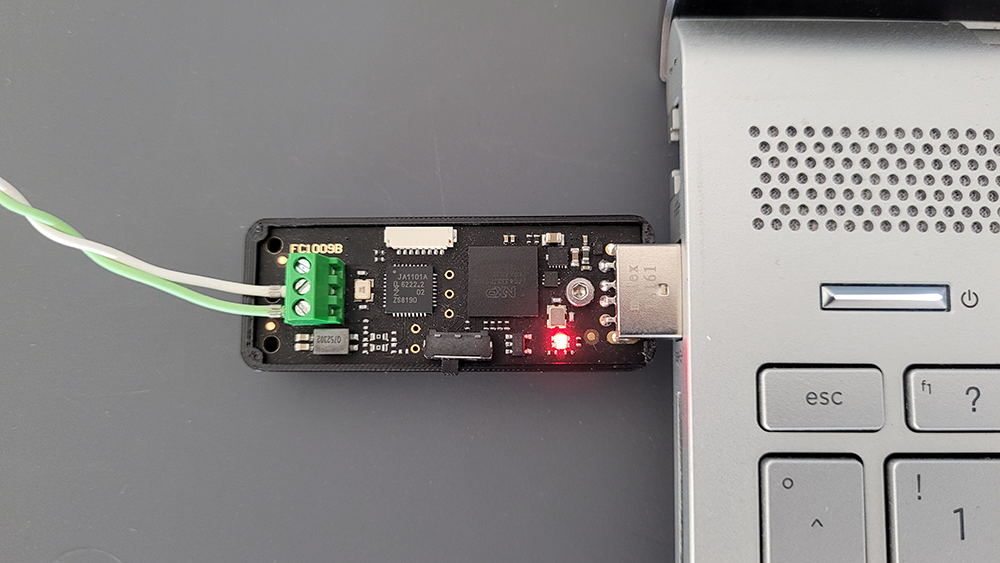
Selecting an adapter in the tree triggers its status LED to blink red, allowing immediate physical identification of adapters on crowded test benches:
Override & Reset MAC Address
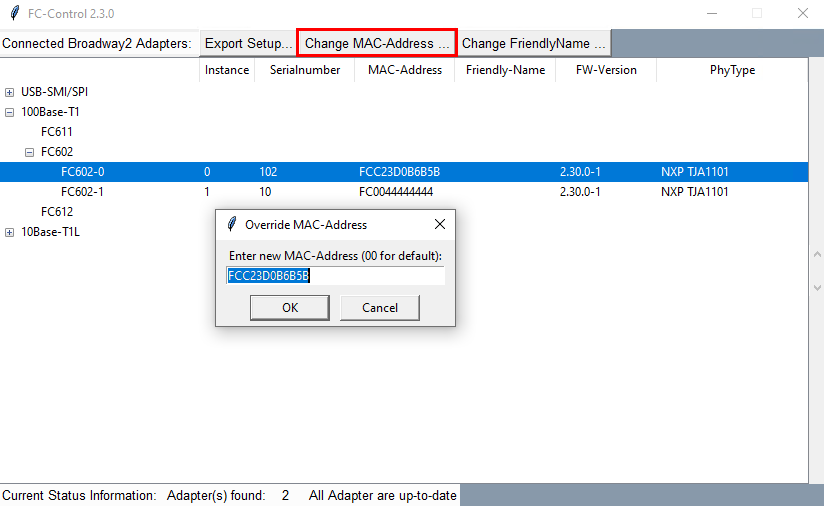
FibreCode network sticks ship with globally unique IEEE OUI MAC addresses. You can override the hardware MAC address for specific automotive network configurations:
- Select the adapter and click Change MAC:
-
Enter the new MAC address and click OK. The adapter will automatically reboot with the new MAC address active.
-
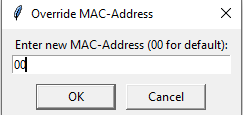
Restore Factory Default: Entering
00disables the override and instantly restores the original factory default MAC address:
Set Persistent Friendly Name
Assign a human-readable name to your adapter (e.g. Bench_DUT_Front or Node_1):
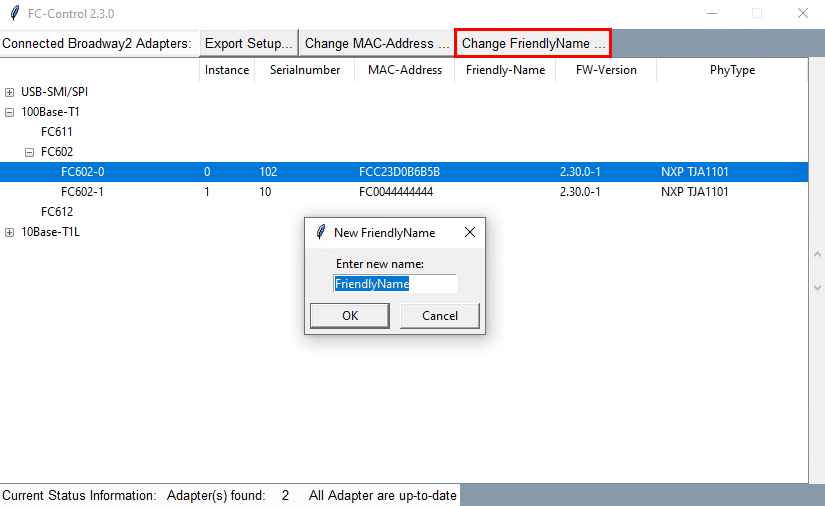
This name is saved into the adapter's persistent internal memory and can be referenced directly in CLI tools like StreamTo via the -n <friendlyname> flag.
Export Hardware Setup as CSV
Export the entire inventory of connected adapters, serial numbers, firmware versions, and assigned names as a CSV file:
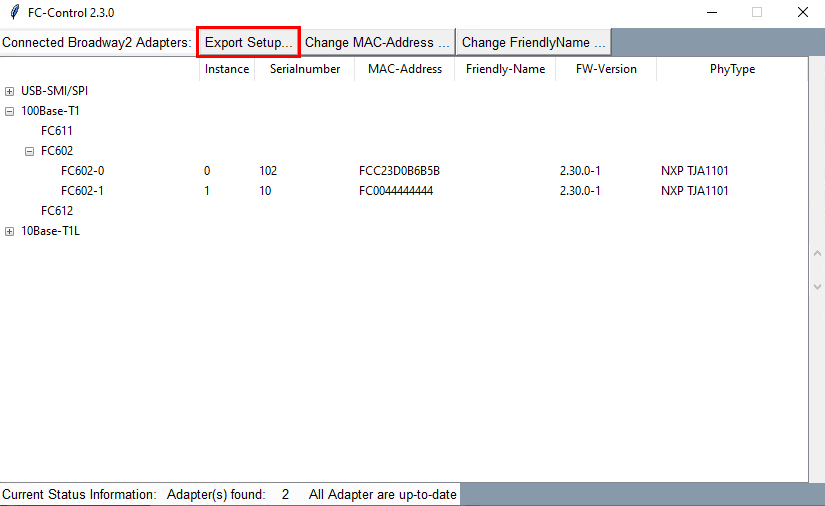
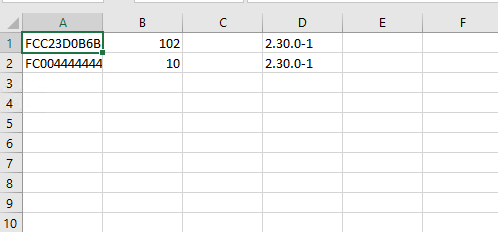
Choose your export path and save: